
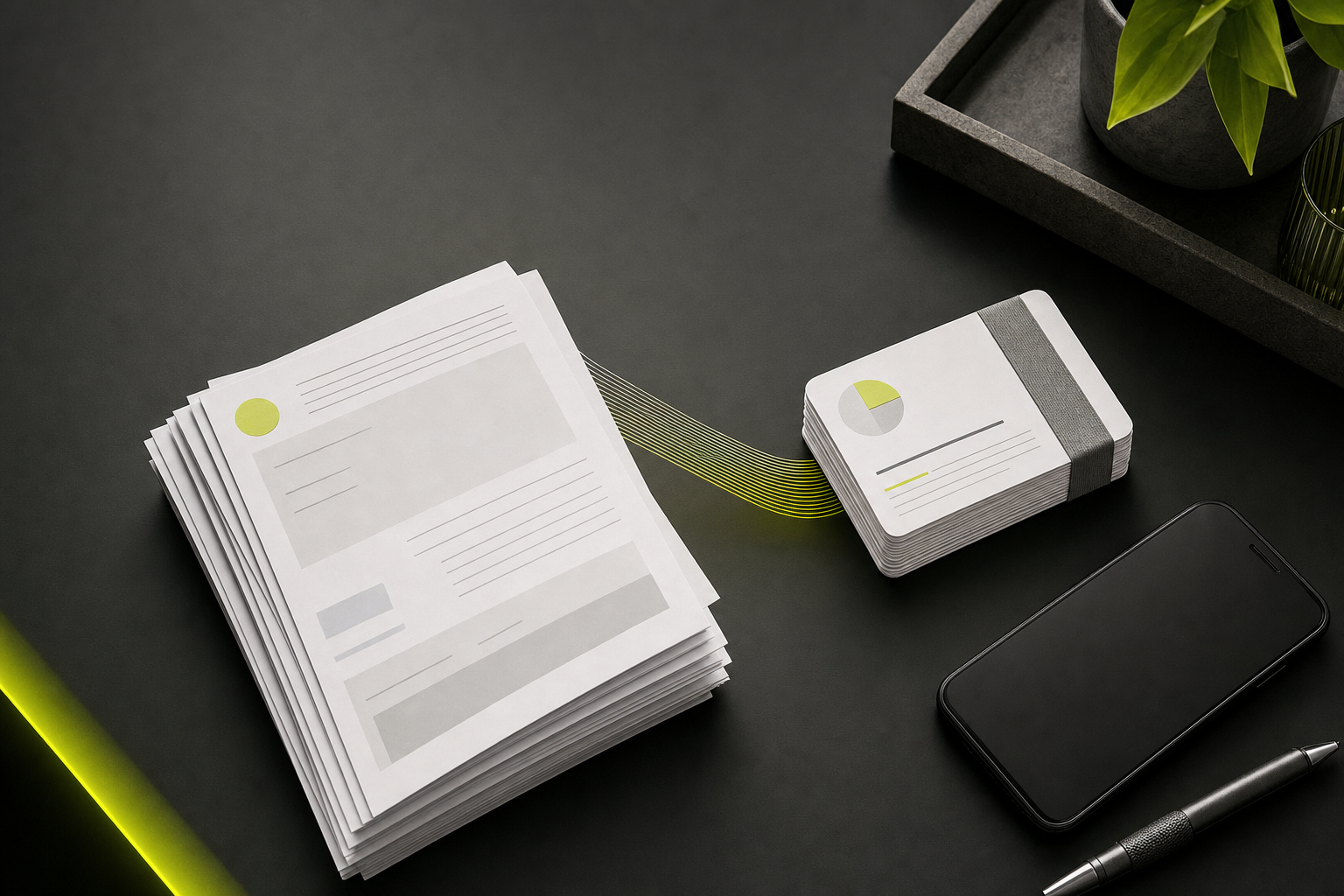
Quick process
- 1
Choose the relevant document
Start with a searchable PDF and confirm its title, author and date.
- 2
Import and organize
Add the PDF to VoiceLog and create a note grouped around the topics you need.
- 3
Restore source references
Keep page numbers for definitions, evidence, quotations and tables.
- 4
Test your understanding
Create a small quiz or flashcard set and correct weak answers from the source.
Know what kind of PDF you have
A digital PDF with selectable text is easier to process than a scan. Old scans, handwritten annotations and complex two-column layouts may introduce recognition errors. If the file is a scan, check a few paragraphs first to see whether names and symbols were read correctly.
Confirm the document’s author, date and version. Course notes are sometimes replaced during a term, and policies or technical manuals may have newer editions. Good study notes begin with the correct source.
Build notes around questions, not page order
Import the PDF into VoiceLog and organize the result around the problem you are studying. A chapter’s printed order may include background, examples and appendices that do not belong in your first revision pass.
Write a short question above each section. For example: “What causes this effect?” or “How does method A differ from method B?” Questions make gaps easier to see and later become useful flashcard prompts.
Try it with your own material
Create your notes in VoiceLog
Keep page references for verification
Add page numbers beside direct quotations, definitions, statistics and claims you may cite. AI-generated notes can compress two nearby ideas into one sentence, so the page reference gives you a quick way to inspect the source before using it.
Review tables, equations and diagrams directly in the PDF. Their relationships often disappear when reduced to plain prose. Describe what the visual proves rather than copying every label.
Combine PDFs without losing provenance
When you import several readings, label which source supports each claim. If two authors disagree, preserve the disagreement instead of blending them into a false consensus. A compact comparison table can be more honest than one smooth paragraph.
Finish with a five-question self-test. Answer without the note, check against the PDF, and rewrite any weak section in your own words. The point is understanding, not producing the longest possible summary.
If the PDF is part of an assessed course, compare your note with the module objectives. A well-written summary can still spend too much space on background material. Move the required concepts to the top and keep supporting detail underneath so revision time follows the marks available.
Record the file name and edition in the note. That detail is easy to skip now and difficult to reconstruct months later, especially when several course files have similar titles.
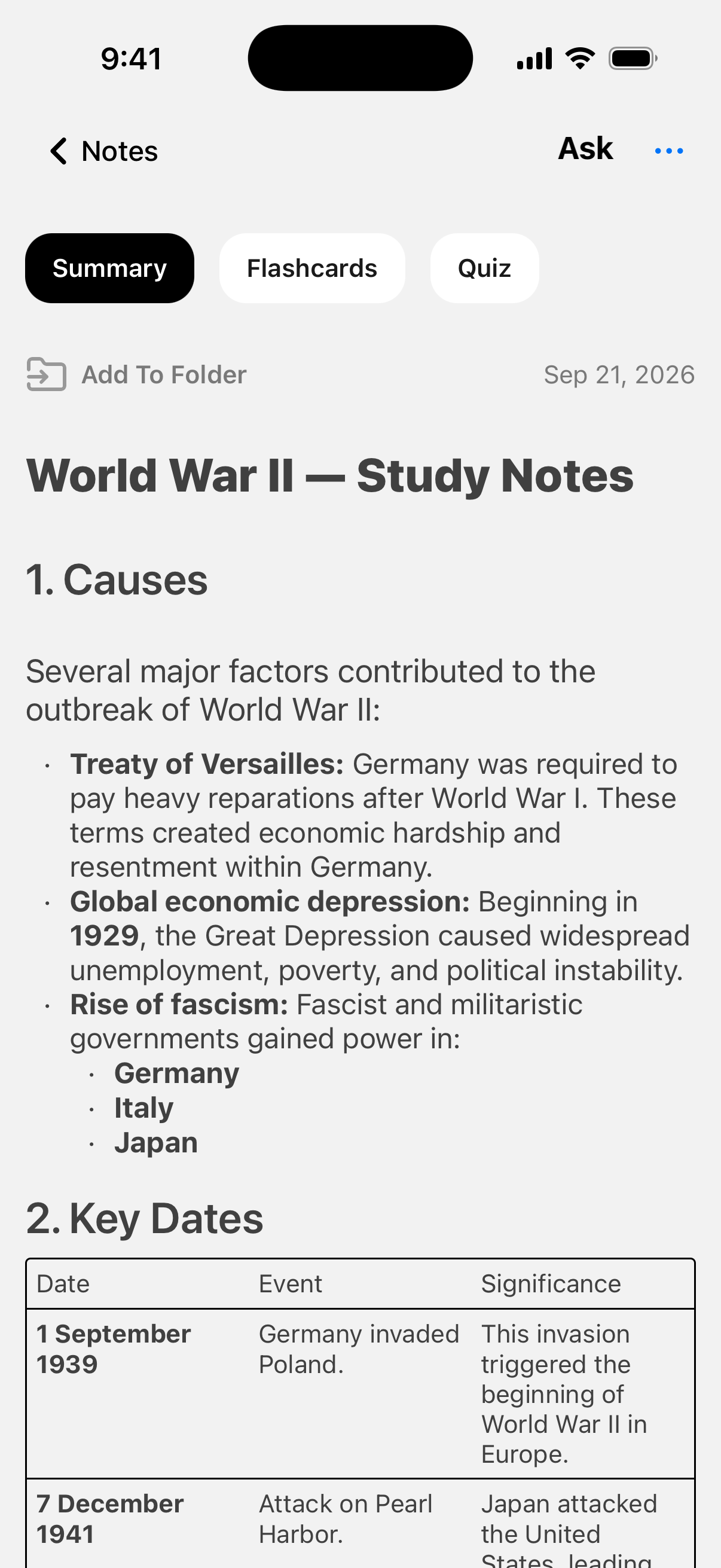
Questions about this workflow
Can AI turn a PDF into notes?
Yes. AI can extract and organize text from many PDFs, but scans, tables, formulas and multi-column layouts need extra checking.
How do I cite a PDF after summarizing it?
Keep the author, title, date and page number with every quotation or important claim. Cite the original document, not the generated note.